When you click on links to various merchants on this site and make a purchase, this can result in this site earning a commission. Affiliate programs and affiliations include, but are not limited to, the eBay Partner Network.
READ THIS FIRST: THE APP SITUATION
Google shut down the official MyGlass app and its support services years ago. You will not find a working Google Glass app in the App Store or Play Store. That is expected. It is not a defect in this unit.
There are two ways to get these running today:
Option 1 (easiest): The aftermarket app.
A friend of mine built a modern app for Google Glass with Bluetooth and AI assistant integration. Search Reddit or Google for this exact phrase, in quotes:
"Built an App to Revive Google Glass - Bluetooth + AI Assistant Integration"
The full setup instructions are in that post. Read it before you offer. If you are not willing to follow those steps, these glasses will not do much for you.
Option 2: Sideload MyGlass.apk.
Requires an Android phone, a computer, ADB, and a USB cable. Instructions are in section 8 below.
Basic functions (photos, video, Wi-Fi, Bluetooth pairing) work on the device itself without any app. The app is what gets you connectivity and modern features.
WHAT IS IN THE BOX
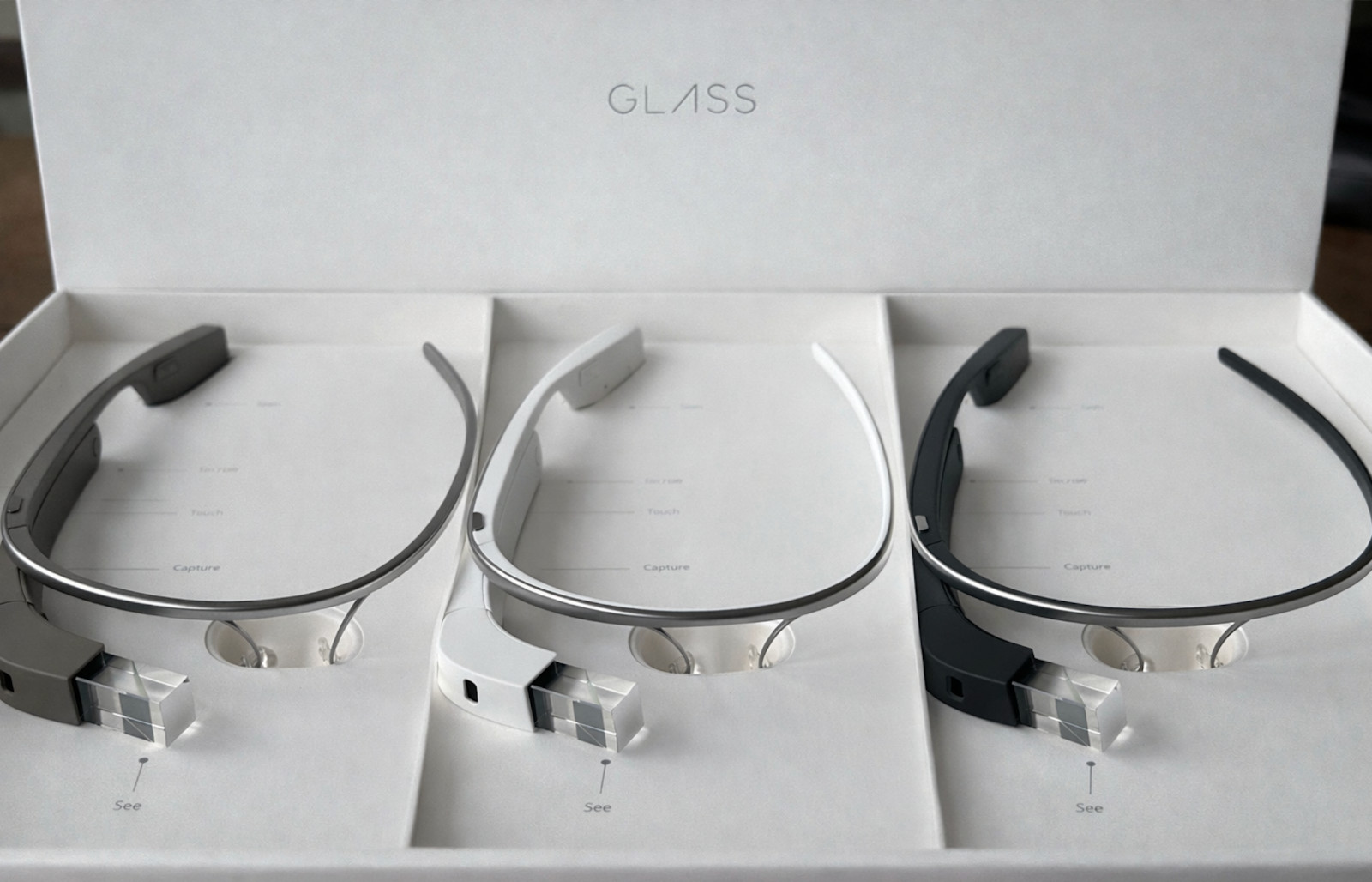
Google Glass, micro-USB charger, wall plug, earbud, carry case, and all original documentation. Everything a brand new device in a box should have.
CONDITION AND TERMS
These are new in box but they are vintage electronics. There is no guarantee on what they can or cannot do, or whether they will power on at all. Sold as-is. NO RETURNS.
ALWAYS CHARGE WITH THE WALL PLUG AND CABLE PROVIDED. Using another charger can damage the unit.
GOOGLE GLASS STEP-BY-STEP GUIDE (2026)
1. Power On and Off
On: Press and hold the power button until the startup screen appears.
Off: Swipe down to sleep, or hold the power button and choose Power Off.
2. The Touchpad
Tap: Select or wake.
Swipe forward: Next card.
Swipe back: Previous card.
Swipe down: Exit.
Long press: Voice command menu.
3. Voice Commands
Activate by saying "OK Glass" or long-pressing the touchpad.
Commands that still work:
"Take a picture"
"Record a video"
"Make a call to..." (Bluetooth required)
4. Wi-Fi
Settings, then Wi-Fi. Choose your network. Enter the password on the on-screen keyboard. Use 2.4GHz networks only.
5. Pairing With Your Phone
iPhone: Settings, then Bluetooth. Select Glass####. Approve the pairing code.
Android: Basic Bluetooth pairing, or install MyGlass.apk for full features.
6. Photos and Video
Photo: Say "OK Glass, take a picture" or press the camera button.
Video: Say "OK Glass, record a video."
7. Viewing Media
Wake Glass, swipe forward to the timeline, tap to open.
8. Sideloading APKs
Requires ADB and a USB cable.
Enable Developer Mode.
Connect to your computer.
Run: adb install filename.apk
9. Hands-Free Camera Uses
Aviation, warehousing, POV filming, coaching and training.
Tips: Use 720p for better battery life. Keep storage below 80 percent. Use portable USB power for long sessions.
10. Troubleshooting
Wi-Fi: Use 2.4GHz networks.
Bluetooth: Remove the pairing, reboot Glass, retry.
Voice commands: Long-press the touchpad to open the menu manually.